Hermes Agent is easiest to understand when you stop treating it as a chatbot and start treating it as a small automation system. It can work from a terminal, continue a session later, use tools, browse, talk through messaging platforms, and keep reusable instructions. That flexibility is useful, but it also means the first setup should be deliberate.
This guide takes a practical path from a clean installation to a useful, safer daily setup. The goal is not to enable every feature at once. Get one reliable conversation working first, then add memory, skills, messaging, browser access, and scheduled jobs only when you have a reason for them.
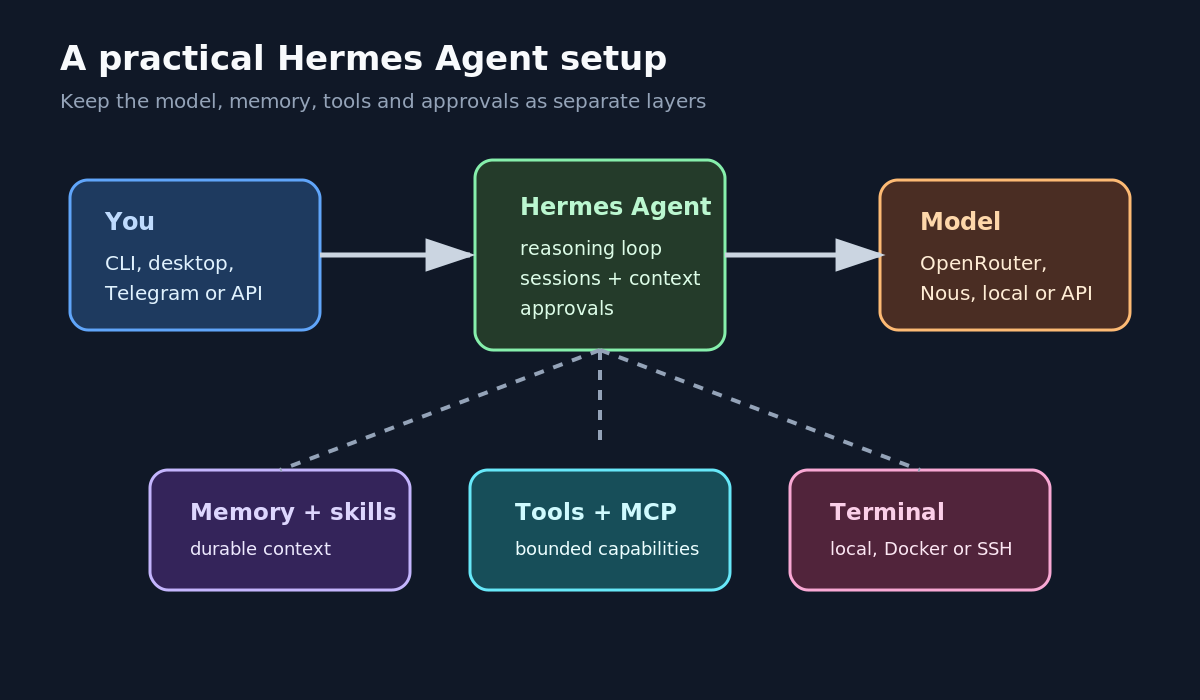
What Hermes Agent actually does
At the centre is an agent loop: Hermes receives a request, asks the configured model what to do, calls tools when needed, reads the results, and continues until it can give you an answer or needs approval. The model provides reasoning, while Hermes supplies the surrounding machinery.
That machinery includes session history, terminal access, file operations, persistent memory, reusable skills, browser automation, messaging gateways, voice features, cron jobs, and MCP servers. They are separate capabilities rather than one large switch. This is important because a useful agent is usually a narrow one: it has enough access to complete a job, but not unlimited access by default.
Before you install
Choose where the agent will run
For a personal workstation, a normal per-user installation is the simplest option. For an always-on bot, use a dedicated Linux user or a small VPS and keep its permissions narrow. A remote setup is convenient for Telegram or scheduled tasks, but it should not automatically have access to every file on your home network.
Choose a model with enough context
Hermes recommends at least a 64,000-token context window for agentic work. Tool calls, command output, session history, and project instructions consume context quickly. A model that looks fine in a short chat can become unreliable when it has to inspect files and iterate through several steps.
OpenRouter is a practical option when you want to compare providers or use a low-cost model for lightweight tasks. A local endpoint such as Ollama is attractive for privacy and predictable costs, but the model still needs a sufficiently large context window and enough memory on the host. Do not choose a model only because it is cheap; check that it can handle tool calling and the context length you need.
Install Hermes Agent
On Linux, macOS, WSL2, or Android Termux, the supported installer is:
curl -fsSL https://hermes-agent.nousresearch.com/install.sh | bashOn Windows, the current native installation uses PowerShell:
iex (irm https://hermes-agent.nousresearch.com/install.ps1)The installer handles the project environment and the Hermes launcher. On Linux, make sure git, curl, and xz-utils are available. If you need Chromium dependencies and are installing as an unprivileged service user, install the system dependencies once as an administrator, then run the normal installer as the service user. If browser automation is not part of your plan, the installer can skip that component:
curl -fsSL https://hermes-agent.nousresearch.com/install.sh | bash -s -- --skip-browserReload your shell and check the installation:
source ~/.bashrc   # or source ~/.zshrc
hermes doctor
hermes --version
hermes doctor is worth running early. It catches a missing launcher, incomplete configuration, provider problems, and common environment issues before you add more moving parts.
Configure the model provider
Use the interactive provider picker rather than hand-editing credentials:
hermes modelHermes also supports a guided Portal setup:
hermes setup --portalFor an OpenRouter setup, store the API key as a secret and keep normal settings in the Hermes configuration. The CLI routes values to the correct location:
hermes config set OPENROUTER_API_KEY YOUR_OPENROUTER_KEYNever paste a real key into a public article, a Git repository, a screenshot, or a shared chat. Use a placeholder such as YOUR_OPENROUTER_KEY in documentation and keep the actual value in the protected Hermes environment file.
Run a clean first conversation
Start Hermes from the terminal:
hermesAsk it for something small that produces a visible result, such as checking the current directory or explaining a short configuration file. Avoid testing with a destructive command or a vague request. You are checking four things:
- the selected provider can answer;
- the model can handle the required context;
- the terminal or file tools behave as expected;
- Hermes saves the session.
After the conversation, verify that it can resume:
hermes --continueIf this baseline is unreliable, stop here and fix it. Do not add Telegram, browser automation, cron, or multiple providers until a normal chat works.
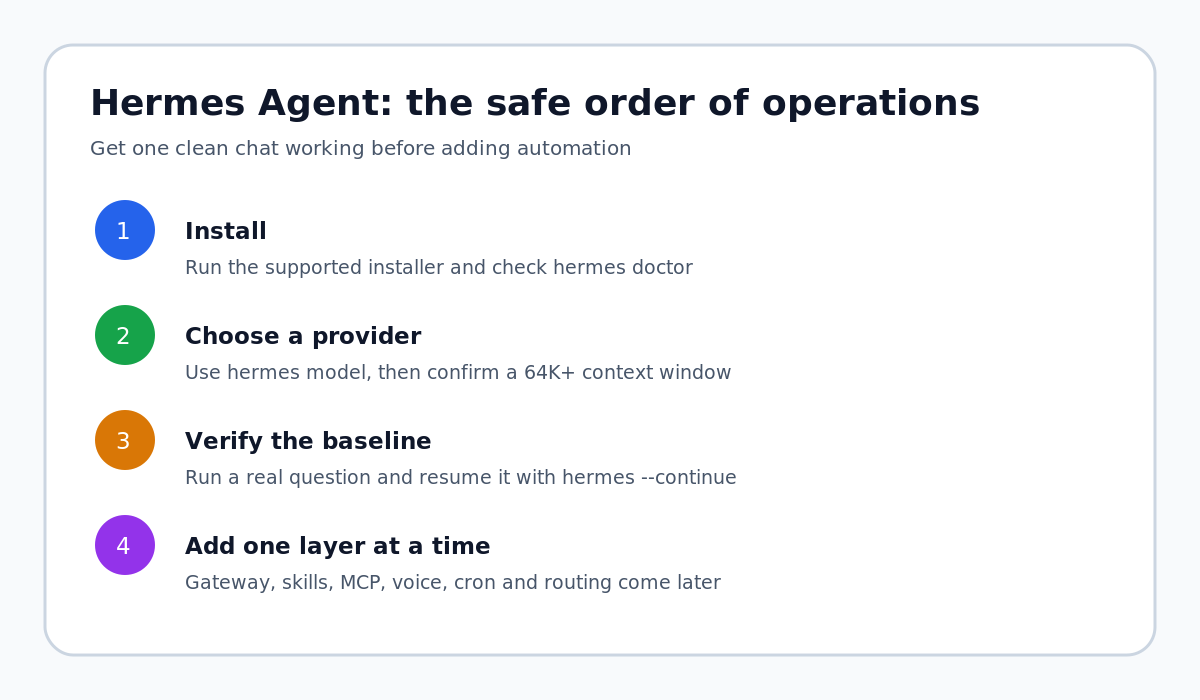
Build useful memory and skills
Memory is for durable context
Persistent memory is useful for stable preferences, recurring project facts, and conventions you would otherwise repeat. It is not a place for passwords, API tokens, recovery codes, private keys, or entire environment files. Keep sensitive credentials in a dedicated secret store and record only a safe reference if you need one.
Good memory is specific and easy to correct. “The server runs Debian and uses Docker Compose” is useful. “Everything about my infrastructure” is too broad. Review memories occasionally so an old hostname, model choice, or project assumption does not quietly shape future work.
Skills are repeatable procedures
A skill is a reusable workflow: for example, a careful backup check, a release process, or a standard troubleshooting sequence. Skills should describe when they apply, the required checks, the safe order of operations, and how to verify success. They should not hide dangerous actions behind a vague instruction.
For a homelab, a good skill might require a fresh service-state check before changing a device, preserve logs before restarting a service, and record the verified result. That turns experience into a repeatable procedure without turning every future task into a long prompt.
Add messaging only after the CLI works
Hermes can connect to Telegram, Discord, Slack, WhatsApp, Signal, and other supported platforms through the gateway. Configure the gateway interactively:
hermes gateway setupUse a dedicated bot identity and an allowlist where the platform supports it. Treat group chats as shared environments: decide who can trigger the bot, whether mentions are required, and which tools are safe to expose. A bot that can read private files or run shell commands should not be reachable by an unrestricted group.
Check the gateway after setup:
hermes gateway statusKeep the first messaging test simple. Send a harmless request, confirm the reply arrives, and only then consider voice messages, scheduled results, or group-chat workflows.
Configure terminal access carefully
The terminal backend determines where commands run and what the agent can reach. For experimentation, Docker provides a useful isolation boundary. SSH can move execution to a separate host. A local backend is convenient, but it should be paired with a dedicated user and clear approval rules if the agent is always online.
Start with the least powerful backend that can complete the task. Keep secrets out of the working directory. Do not mount your home directory, Docker socket, SSH agent, or password store into a sandbox unless the workflow genuinely requires it and you understand the consequences.
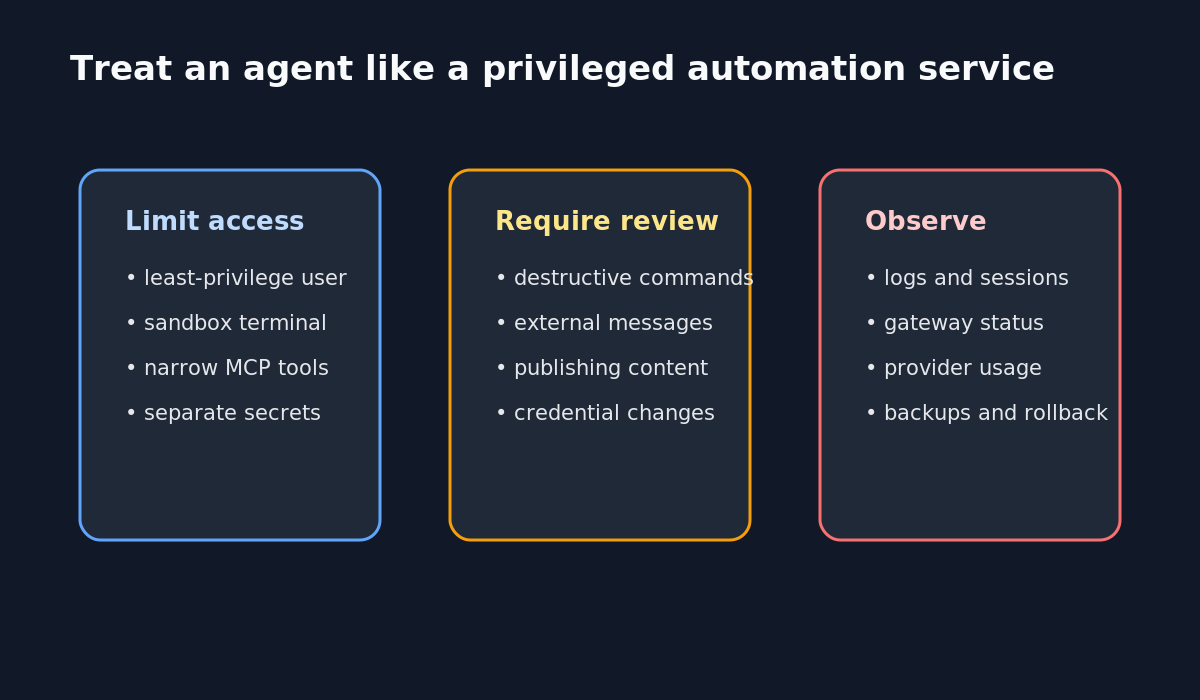
Use browser tools and MCP selectively
Browser automation can work with a local Chromium-family browser through CDP, or with a configured cloud provider. A local browser is useful when you need to see the session or use a browser on your own network. A cloud browser may be easier for public websites, but it introduces another service and another trust boundary.
To connect a local browser from the interactive CLI, use:
/browser connect
/browser status
Do not assume that a successful page load means the workflow is safe. Review which cookies, accounts, and saved sessions are available to the browser profile. Use a clean profile for automation whenever possible.
MCP extends Hermes with external tools. Treat each server as a separate integration, not as a harmless plugin. Enable only the tools you need, read the server documentation, and test a read-only operation before allowing writes. For example, a WordPress integration may expose both “list posts” and “publish post” capabilities. They deserve different approval thresholds.
Voice, scheduled jobs, and backups
Voice and text-to-speech are convenience layers. Configure them after the text workflow is stable, then verify where recordings, transcripts, and generated audio are stored. Avoid sending sensitive spoken content through a provider you have not reviewed.
Cron jobs are powerful because they act without a person in the loop. Make each job self-contained, narrow, and idempotent where possible. A good scheduled task checks a defined source, reports what changed, and does not delete or publish anything without an explicit approval path.
Back up the parts of Hermes that matter to you: configuration without secrets, skills, safe memory, and any project context files. Keep tokens and passwords out of the backup or protect them using a proper secret-management system. Test restoring a small part of the setup instead of assuming that a backup exists because a file was copied.
Common problems and the quickest fixes
Hermes starts but replies are empty or broken
Run hermes model again and confirm the provider, model name, credentials, and context length. A custom endpoint may be reachable while still returning an incompatible response format.
The gateway starts but nobody receives replies
Run hermes gateway status, check the bot token and platform allowlist, and send a direct test message before troubleshooting group permissions.
The agent forgets a previous session
Check that you are using the same Hermes profile and that the session was saved. Run hermes sessions list, then try hermes --continue.
Browser automation cannot connect
Confirm that the selected browser backend is installed and that a local Chromium instance is reachable when using CDP. For local automation, check the agent-browser installation and run /browser status from the interactive CLI.
A tool behaves differently after an update
Run hermes doctor, inspect the enabled tools with hermes tools, and verify the current documentation. Tool availability can change independently from the core chat setup.
Practical verification checklist
-
hermes doctorreports a usable installation. - A normal chat completes with the selected model.
- The session resumes with
hermes --continue. - Terminal access is limited to the intended host and user.
- Messaging uses a dedicated bot and an allowlist.
- Browser and MCP tools are enabled only when needed.
- Secrets are separated from normal configuration and backups.
- Scheduled jobs have a clear scope and a review path for writes.
FAQ
Is Hermes Agent only for coding?
No. Coding is a natural use case because Hermes can inspect files and run commands, but the same agent loop can support research, documentation, browser tasks, homelab maintenance, and messaging workflows.
Do I need a paid model provider?
No single provider is required. Hermes supports several hosted providers, OpenRouter, compatible custom endpoints, and local model backends. The practical requirement is a model with reliable tool calling and enough context for the workflow.
Should I enable every tool during setup?
No. Start with the minimum needed for a real task. Adding capabilities one at a time makes failures easier to diagnose and reduces the damage caused by a bad instruction or misconfigured integration.
Can Hermes replace a password manager?
No. Keep credentials in a proper password manager or secret store. Hermes can use a secret at runtime when configured safely, but its memory, transcripts, logs, and backups should not become an accidental credential database.
Conclusion
The reliable Hermes setup is not the one with the most integrations. It is the one you can explain: which model answers, where commands run, what memory is retained, which tools are enabled, and which actions still need your approval. Build that small, understandable baseline first. Then add the features that remove real friction from your work.
If you want to take the next step, see our guide to using Hermes Agent as a personal operating layer. For authoritative syntax and current support details, use the Hermes Agent Quickstart, installation guide, security documentation, and official source repository.